PNG to DXF
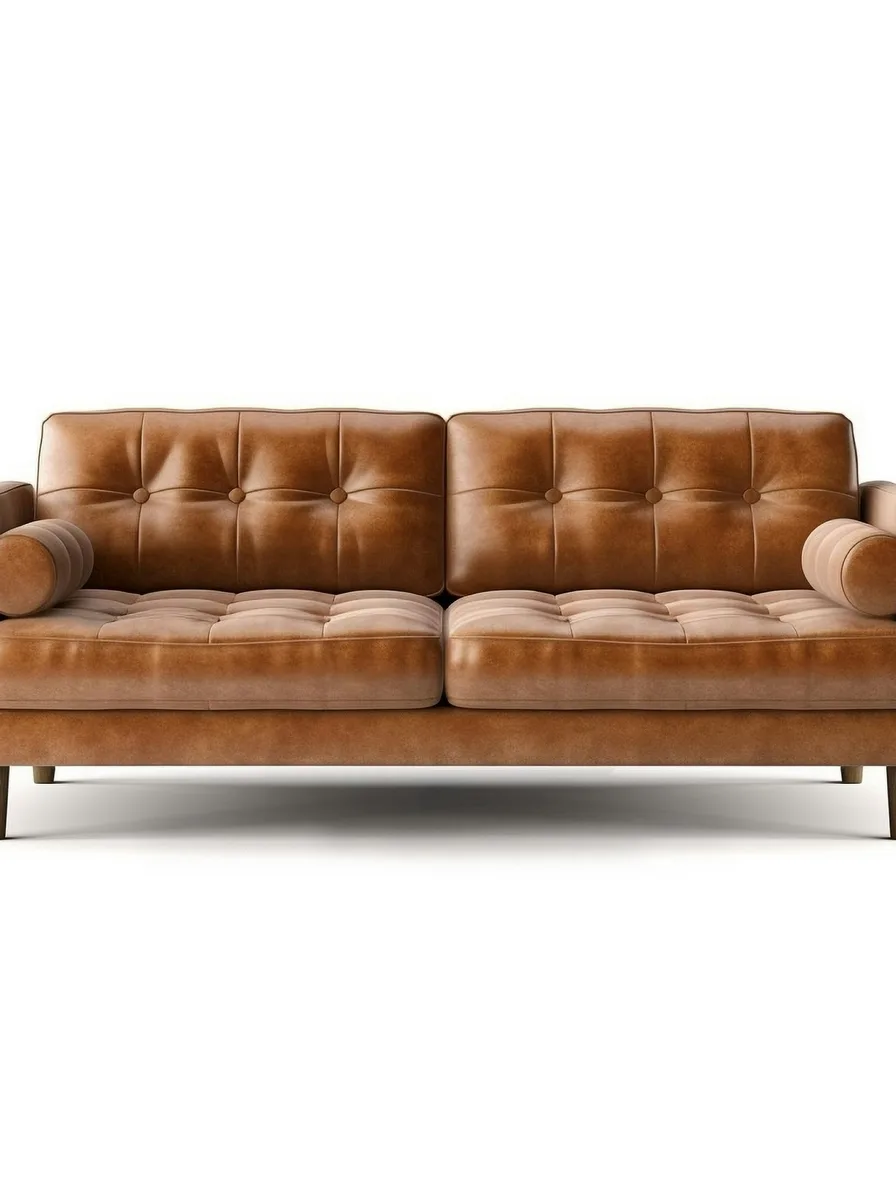
The sofa from a supplier's website, a render, a cutout from your folder: if it's a PNG, it can be a DXF you draw with.
or drag it here. JPG, PNG, WebP and HEIC all work.
Uploading needs no account. To generate, create a free one.


What's inside the DXF
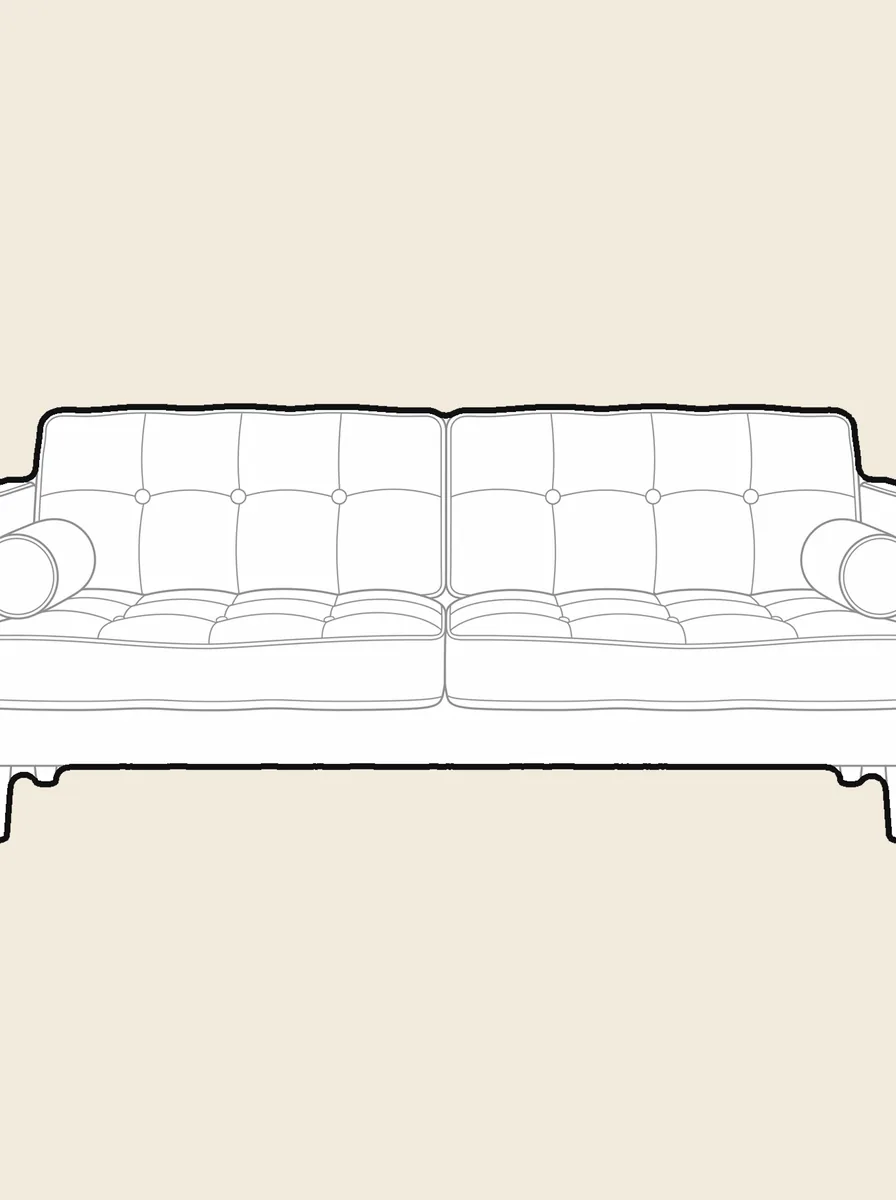
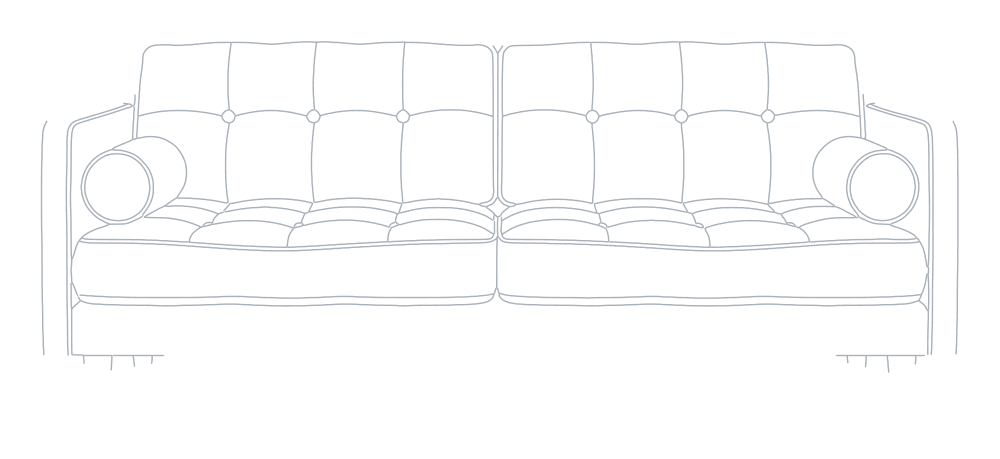
This is the real file of the sofa above, the same one you can download here. Three layers, each with one job.
Outer1 closed spline
The outline. It's the cut path if you send the sofa to a laser, and the silhouette if you hatch it in a plan.
Inner224 lines and curves
Cushions, buttons, seams and legs: the detail, on its own layer so you can thin it or switch it off.
Fill1 solid hatch
A solid fill that hides the wall behind the sofa in an elevation.
- Format
- DXF R2018
- Units
- Millimetres
- Size
- 1564 × 651 mm
- Curves
- Splines
Free, no account needed. Open it in your CAD and check it yourself.
Three ways to turn a PNG into a DXF
All three end in a DXF. What changes is how long it takes and what you find when you open it.
Redraw it by hand in CAD
- Time
- An hour or more per object
- What you open
- Clean lines, if you have the patience
- Layers
- The ones you make
- Scale
- Whatever you measure
An automatic vectorizer
- Time
- Seconds
- What you open
- Every shadow and reflection, traced as lines
- Layers
- Usually one
- Scale
- Pixels, so you rescale it
pic2CAD
- Time
- About a minute
- What you open
- The object, drawn the way you would draw it
- Layers
- Three, already named
- Scale
- Real millimetres in Orthographic view
Opens in
- AutoCAD
- Rhino
- ArchiCAD
- Revit
- SketchUp
- LightBurn
- Illustrator
DXF R2018, the version every current CAD and laser program reads without a plug-in.
How it works
Upload a picture
Any picture works: one you shoot yourself, a reference from a client, or a sketch you already have.
pic2CAD draws the line art
The picture becomes a clean line drawing in about a minute. Generating uses 1 credit, and you get it back if the drawing fails.
Download PNG, SVG, DXF and DWG
Every format, every time; the DWG is under the + button in My drawings. Downloading is always free, however many times you need the file.
How pic2CAD helps
Suppliers, renders and cutout sites hand you PNGs: clean, on a white or empty background, and useless in CAD. A vectorizer turns them into thousands of jagged little segments that you end up redrawing anyway.
pic2CAD reads the object in the PNG and redraws it as a clean line drawing, not a pixel-by-pixel trace. Along with the DXF you get the SVG for Illustrator and the PNG, and under the + button in My drawings, a DWG.
Ideal for
- Interior designers who want the real product from a supplier's catalogue in their plans
- Architecture students turning cutouts from their collage folder into line blocks
- Designers who need a render or a mock-up back as a technical drawing
- Laser cutters starting from a PNG they found or made
Frequently asked questions
Your PNG, as a DXF.
Upload it, click the object and download the DXF, the DWG, the SVG and the PNG. About a minute.
or drag it here. JPG, PNG, WebP and HEIC all work.
Uploading needs no account. To generate, create a free one.